


No App Download Required
Choose and resize images directly in your browser without installing software or switching between tools.


Import image & size settings
Click or drag to add an image
Other cropping tools
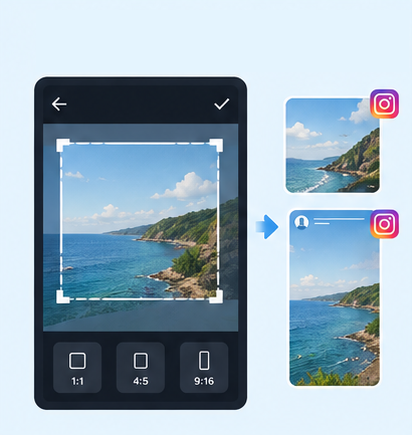
IG Post/Story Resize
Threads Post Image
2-Inch ID Photo
Passport Photo
Resume Photo
IG Grid Maker
Multi-Platform Resizer
LINE Rich Menu
YouTube Thumbnail & Banner Resizer
Facebook Image Resizer
LinkedIn Profile/Banner Resizer
Amazon Product Image Resizer
Shopify Product Image Resizer
Etsy Image Resizer
eBay Product Image Resizer
Rakuten Product Image Resizer
Mercari Product Image Resizer
Image Compressor
Image Format Converter
Image Watermark
Add Border to Image
Photo Collage Maker
Image Mosaic
Blur Faces
Blur License Plates
Worried that your Shopee product images will be cropped or displayed incorrectly because they do not meet the size requirements? GenApe offers a free tool with presets for product images, 3:4 portrait images, shop covers, and carousel banners. No need to memorize pixel dimensions. Upload an image, choose a size, adjust the crop, then preview and download an image for your Shopee placement.
Shopee image size requirements vary for product photos, shop covers, and carousel banners. Before creating an image, check the pixel dimensions and aspect ratio needed for its placement to prevent distortion or unwanted cropping. The chart below lists seven common Shopee image size presets for quick reference and resizing.
| Image Type | Dimensions (px) | Aspect Ratio | Use Case |
|---|---|---|---|
| Product Main Image | 1024 × 1024 | 1:1 | Shopee product cover photos and product listings |
| High-Resolution Main Image | 1200 × 1200 | 1:1 | Product photos that show more detail |
| Portrait Product Image | 900 × 1200 | 3:4 | Outfit photos and tall products |
| Shop Cover Image | 1200 × 518 | Approx. 2.32:1 | Shop homepage cover and brand visuals |
| Standard Carousel Banner | 1200 × 600 | 2:1 | Shop promotions and product banners |
| Advanced Carousel Banner | 2000 × 1000 | 2:1 | Large banners and brand campaigns |
| Livestream Cover | 900 × 1600 | 9:16 | Livestream promotional images |
Choose and resize images directly in your browser without installing software or switching between tools.
Choose a preset for your image placement without calculating aspect ratios or repeatedly entering pixel dimensions.
Select an image format that suits your needs and meets the relevant Shopee upload requirements.
Adjust JPG output quality from 90% to 55% to help manage file size and reduce the risk of uploads failing due to Shopee file size limits.
Image upload reminder: Some Shopee image placements have a 2 MB limit per file. If your resized JPG is still too large, use the image compressor to reduce its file size before uploading.
Upload the Shopee image you want to resize
Select Shopee image dimensions and adjust the crop
Preview and download your resized image
A 3:4 portrait image shows more vertical content, making it useful for full-body outfit photos and tall products while reducing unwanted cropping at the top and bottom.
Shop covers mainly showcase your brand and commonly use a 1200 × 518 px preset. Carousel banners promote products and campaigns, commonly using 1200 × 600 or 2000 × 1000 px. Choose the size for the intended placement.
Keep the product fully visible and the main subject clear. For product photos, center the subject with some breathing room. For shop covers and banners, keep key text and logos away from areas that may be cropped across devices.
It can. Enlarging a low-resolution image does not restore missing detail, and lowering JPG output quality may cause blurring. Start with a clear image and check text and product details before downloading.
AI Assistant Ayuan

Hi there! This is Ayuan speaking. I’m here to answer your questions.
How can I help you?
