



GenApeLogo
Close sidebar
  • Home
  • editIconTextApegradientUpIcon
  • AI Content WorkspaceUpgrade
  • imageIconImageApegradientUpIcon
  • AI Video Generator
    Popular
  • additionIconAdditiongradientDownIcon
  • Pricing
Blog
  • Sign up and get 200 free Credits!
    Back to list

    eBay Product Image Resizer

    Quickly resize for eBay listing photos and store banners

    Import image & size settings

    Click or drag to add an image

    Image scale%
    No image uploaded yet

    Click or drag to add an image

    Other cropping tools

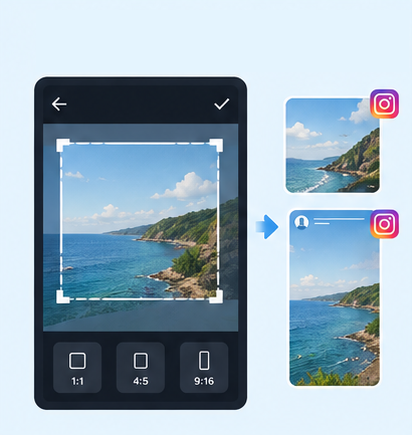
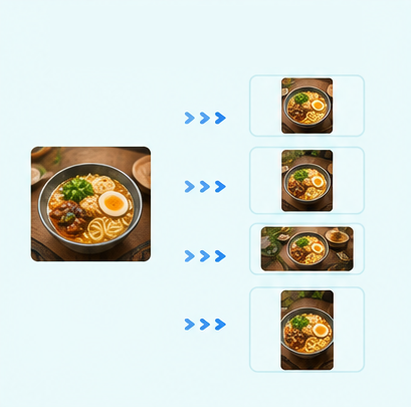
    IG Post/Story Resize

    9:164:53:41:11.91:1+3

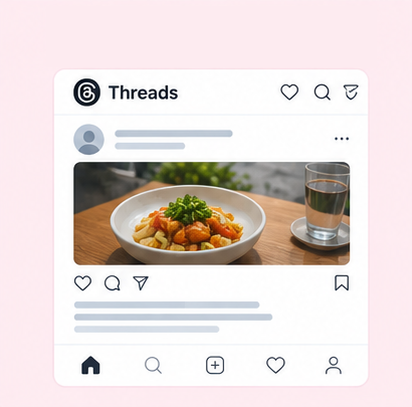
    Threads Post Image

    4:51:19:161.91:1+2

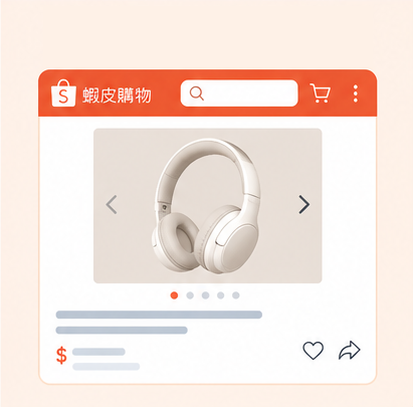
    Shopee Main/Product Image

    1:13:42.32:12:19:16+3

    2-Inch ID Photo

    3.5:4.5

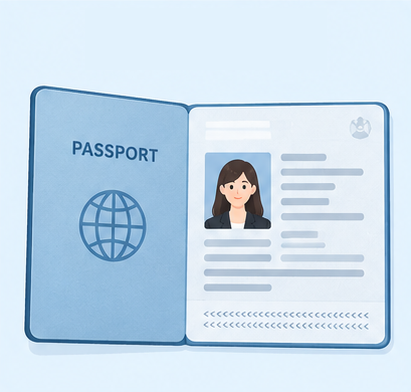
    Passport Photo

    3.5:4.5

    Resume Photo

    3.5:4.54:5

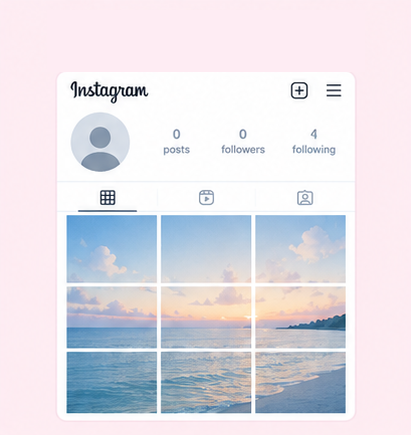
    IG Grid Maker

    1:14:5

    Multi-Platform Resizer

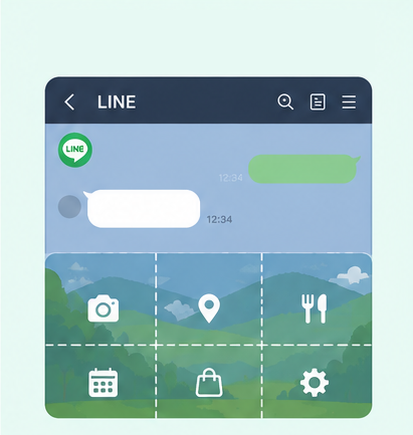
    LINE Rich Menu

    3:23:1

    YouTube Thumbnail & Banner Resizer

    16:99:161:1+1

    Facebook Image Resizer

    4:316:91:12.6:11.92:11.91:11:22:1+6

    LinkedIn Profile/Banner Resizer

    1:14:16:13:24:5+3

    Amazon Product Image Resizer

    1:1

    Shopify Product Image Resizer

    1:116:9

    Etsy Image Resizer

    1:11.7:17.6:17.5:14:12:14:3+5

    Rakuten Product Image Resizer

    1:15.14:15:23:1+2

    Mercari Product Image Resizer

    1:1

    Image Compressor

    Image Format Converter

    Image Watermark

    Add Border to Image

    Photo Collage Maker

    Image Mosaic

    Blur Faces

    Blur License Plates

    eBay Image Size & Photo Resizer | Crop Listings and Store Banners

    Need the right eBay image size? Use GenApe to resize and crop product photos, store banners, and logos online. Choose from six preset dimensions, adjust the crop and output quality, and prepare photos for eBay listings. You can also create product visuals with the AI Product Image Generator before resizing.

    eBay Image Size Guide: Dimensions for Listings and Store Graphics

    eBay image dimensions vary by placement. The eBay shop banner size (also searched as eBay header size) differs from the dimensions used for listing photos, store logos, and category graphics. Compare the six presets below to find the right eBay photo size for your needs.

    Image typeSuggested dimensionsAspect ratioPrimary use
    Product listing image1600×1600 px1:1Main product image and additional product angles
    Large store billboard1280×290 pxApprox. 4.41:1Branding banner on your store homepage
    Store logo300×300 px1:1Store branding and profile graphic
    Featured category image300×300 px1:1Product category and collection links
    Marketing banner640×640 px1:1Store promotions and campaign graphics
    Collection banner image640×360 px16:9Product collections and featured themes

    eBay Image Upload Requirements and Supported Formats

    Besides eBay image size, resolution, file size, format, and background all affect whether a photo is suitable for upload. According to eBay’s picture policy and listing guidelines, keep the following requirements in mind:

    • Minimum resolution: The longest side must be at least 500 pixels. eBay’s photo guidance recommends at least 500×500 pixels, with around 1600×1600 pixels preferred for clear product details.

    • File size: The upload limit for a standard listing photo is 12 MB per image. Reduce the file size if it exceeds the limit.

    • Image formats: Supported formats include JPEG, PNG, WebP, GIF, TIFF, BMP, HEIC, and AVIF.

    • Background: Use a clean white or neutral background when appropriate, though pure white is not required. Darker backgrounds can help show reflective items such as jewelry or metal products.

    • Watermarks and text: Listing photos must not contain added watermarks, promotional text, borders, or other graphics that violate eBay’s picture policy.

    For used items, show photos of the actual item rather than replacing them with catalog or stock photos.

    Why Use GenApe to Resize eBay Images?

    Prepare images for different placements without switching between complicated photo editors.

    Crop eBay Product Photos Online—No Software Required

    Upload a product photo and adjust the crop area and aspect ratio right in your browser. Prepare listing photos, category images, or store banners without installing or switching between editing apps.

    Six Preset eBay Image Dimensions

    Not sure which picture size for eBay to use? Select from six built-in presets based on your image placement instead of entering the width and height manually each time.

    Export as JPG, PNG, or WebP

    Choose JPG, PNG, or WebP based on your photo. JPG works well for product photography, PNG is useful for transparent backgrounds or crisp graphics, and WebP can help balance image quality and file size.

    Adjust Crop Ratio and Output Quality

    After selecting a size, adjust the crop to keep the product and important details in frame. For JPG and WebP exports, select an output quality setting to balance clarity and file size. PNG does not use the same lossy quality setting.

    Works With AI Product Image Tools

    If your photo has a distracting background, use the AI Background Changer to create a solid color or clean scene, then crop it to your preferred eBay dimensions. Make sure edited images still accurately show the item being sold.

    How to Resize Photos for eBay in 4 Steps

    Follow these four steps to crop photos for eBay, whether you need a square listing image or a wide store banner.

    Upload a Product Photo

    Click the upload area to choose a photo, or drag and drop an image into the tool.

    Choose an eBay Image Size

    Select the eBay preset dimensions that match your image placement.

    Adjust the Crop Area

    Keep the product, important details, and composition inside the crop area.

    Download the Image

    Choose JPG, PNG, or WebP and adjust output quality where available.

    eBay Image Size FAQs

    01.

    How many photos can I upload to an eBay listing?

    eBay listings require at least one photo and generally allow up to 24 images. Some variation listings or vehicle categories may have different limits. Include front, side, back, and close-up photos; for used items, clearly show signs of wear and any defects.

    02.

    Can I use AI-generated product images on eBay?

    Yes. eBay allows AI-assisted edits such as removing clutter, generating a background, or improving a photo, but the image must accurately represent the product. Do not use AI to hide defects, change product features, or mislead buyers. Fully AI-generated images must also match the item being sold; use real photos for used items instead of fabricated product shots.

    03.

    Can I upload Amazon product photos directly to eBay?

    Yes, as long as you have the rights to use the photo and it meets eBay’s picture policy. Amazon and eBay have different image requirements: eBay does not require a pure white background, and multiple photos can show product details. If you sell on both platforms, use the Amazon Product Image Resizer to crop your photos for each marketplace.

    04.

    Why do my eBay photos look blurry in search results?

    eBay search results display smaller versions of listing photos. Low original resolution, excessive cropping, or enlarging a small image can make details look blurry. Start with a sharp original and resize the main photo to around 1600×1600 pixels without overcompressing it.

    05.

    What is the best aspect ratio for eBay images?

    A 1:1 square ratio, such as 1600×1600 pixels, is a practical choice for most eBay listing photos. But eBay does not require every image to be square; choose other ratios when they better fit the product or placement. Store billboards, marketing banners, and collection graphics should use dimensions appropriate to their specific layouts.

    Assistant
    LineButton