
No Image Yet?
If you don’t have an image ready, use GenApe’s AI image generator to create visuals based on your product, service, campaign, or brand style. Once finished, upload the image to the LINE Rich Menu crop tool.
Quickly resize images for a LINE Official Account rich menu
Import image & size settings
Click or drag to add an image
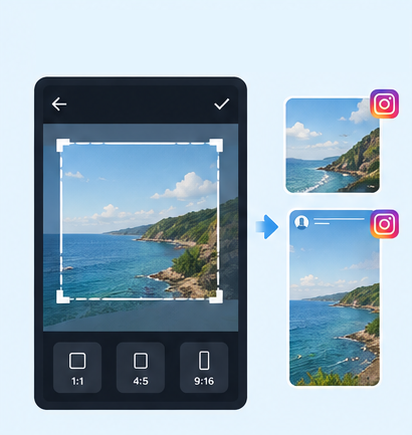
IG Post/Story Resize
Threads Post Image
Shopee Main/Product Image

2-Inch ID Photo
Passport Photo
Resume Photo
IG Grid Maker
Multi-Platform Resizer
YouTube Thumbnail & Banner Resizer
Facebook Image Resizer
LinkedIn Profile/Banner Resizer
Amazon Product Image Resizer
Shopify Product Image Resizer
Etsy Image Resizer
eBay Product Image Resizer
Rakuten Product Image Resizer
Mercari Product Image Resizer
Image Compressor
Image Format Converter
Image Watermark
Add Border to Image
Photo Collage Maker

Image Mosaic

Blur Faces

Blur License Plates
Already have your image but need the right LINE Rich Menu size? Upload it to the AI tools of GenApe, choose a large or small official size, adjust the crop, preview the grid, and download the finished image without reopening your design software.

Already have an image? There’s no need to find a new LINE Rich Menu template and start over. GenApe’s free tools combine resizing, cropping, and downloading in one tool, so you can upload your existing image and adjust it right away.
No need to enter image dimensions or calculate aspect ratios yourself. Choose a large or small LINE Rich Menu, and the tool automatically applies 2500×1686 px or 2500×843 px for use with a LINE Official Account.
Once the size is applied, zoom in, zoom out, or move the image to adjust how people, products, logos, or text appear within the frame and keep important content from being cropped out.
Turn on the grid preview to see how your image aligns with the LINE Rich Menu layout. Check the position of text, icons, and key visuals before downloading, making layout adjustments more straightforward.
After cropping your LINE Rich Menu image, download it as PNG or JPG without converting the file separately. The finished image can then be uploaded to your LINE Official Account for further setup.
Select high, standard, or low output quality based on how you plan to use the image. This gives you more control over image clarity and file size before exporting as PNG or JPG.
※ Size note: 2500 px cannot be divided evenly into three whole-number sections, so 3-column layouts may differ by about 1 px, such as 833/834/833 px. When setting up your menu, use the actual layout dividers shown in the LINE Official Account Manager as your final reference.
| LINE Rich Menu | Recommended Size | Best For |
|---|---|---|
| Large | 2500×1686 px | Multiple actions, product categories, membership services |
| Small | 2500×843 px | Main actions, campaign links, simpler menus |


There’s no need to create a new canvas or manually enter image dimensions. Once your image is ready, simply upload it, choose the layout size, and download the finished LINE Rich Menu image.
Upload the image you want to use for your LINE Rich Menu, such as a brand visual, campaign banner, product image, or existing design.
Choose the LINE Rich Menu size that matches your layout: 2500×1686 px for large or 2500×843 px for small. After applying the size, you can zoom, reposition the image, and turn on the grid preview to check the layout.
Once the crop looks right, select PNG or JPG and choose your preferred output quality. Your finished LINE Rich Menu image is then ready to download.
Don’t have a suitable image yet? You don’t need to search across multiple platforms for assets. Use GenApe AI tools to create or prepare your visuals before resizing them for your LINE Rich Menu.
If you don’t have an image ready, use GenApe’s AI image generator to create visuals based on your product, service, campaign, or brand style. Once finished, upload the image to the LINE Rich Menu crop tool.

If the existing background is too busy or doesn’t match your brand style, use GenApe to remove the background or use AI Background Changer replace it with a more suitable one before cropping the image to the correct LINE Rich Menu size.
A LINE Official Account Rich Menu can organize different entry points based on your business and customer needs, from product categories and bookings to membership services. Once your image is ready, GenApe can quickly resize and crop it to the appropriate LINE Rich Menu dimensions.

Organize product categories, new campaigns, member areas, promotions, or website links in your LINE Rich Menu so customers can reach key pages without searching through past messages.

Restaurants, cafés, and appointment-based businesses can add menu links, online reservations, store information, delivery options, or current campaigns so frequently used actions stay accessible at the bottom of the LINE chat.

Beauty salons, hair stylists, nail artists, photographers, and other independent service providers can organize bookings, services, portfolios, pricing information, and contact options in one Rich Menu.

When developing LINE OA, LIFF, or other LINE-based services, you can first create interface visuals for each action, then use GenApe to resize them for a large or small LINE Rich Menu before configuring the tap areas and actions.
Large LINE Rich Menu images are 2500×1686 px, while small images are 2500×843 px. Because the heights differ, choose the image size and button layout before arranging your content to avoid major design changes later.
Leave enough space around headlines, logos, button labels, and important subjects. Avoid placing them directly on layout boundaries, where they may become harder to read or visually align after setup.
GenApe handles LINE Rich Menu image sizing and cropping. After downloading the image, you still need to choose the matching layout in LINE Official Account Manager and assign URLs, messages, or other actions to each tappable area.
Button area dimensions depend on whether you use a large or small menu and which layout you choose. For example, each area in a large 4-area layout is 1250×843 px, while each area in a small 2-area layout is also 1250×843 px. A three-column layout is approximately 833×843 px per area. Always align text and icons with the actual layout dividers shown in LINE Official Account Manager.
Yes. If you already have a product image, campaign banner, brand visual, or design file, upload it to GenApe and choose either 2500×1686 px for a large menu or 2500×843 px for a small menu. You can then reposition and crop the image without recreating it from scratch.
Yes. If you already have an image, there’s no need to find a LINE Rich Menu template. Upload your existing visual, apply the required official size, and adjust the image position to complete the crop.
GenApe lets you download cropped LINE Rich Menu images as PNG or JPG. You can also choose the output quality based on your needs before uploading the image to your LINE Official Account.
After downloading your image, open LINE Official Account Manager and create a Rich Menu. Choose the matching layout, upload the image, and assign a URL, message, or other action to each area. GenApe handles image resizing and cropping; the actual Rich Menu setup and publishing are completed in LINE Official Account Manager.
No. GenApe is a third-party online image tool designed to help you quickly resize and crop images to dimensions suitable for a LINE Official Account Rich Menu. Creating the account, configuring button actions, and publishing the Rich Menu must still be done through LINE’s official tools.
Yes. GenApe’s LINE Rich Menu crop tool is free to use. Upload an image, choose the large or small size, adjust the crop, and download the finished image for your LINE Rich Menu.
AI Assistant Ayuan

Hi there! This is Ayuan speaking. I’m here to answer your questions.
How can I help you?
