


Import image & size settings
Click or drag to add an image
Click or drag to add an image
Other cropping tools
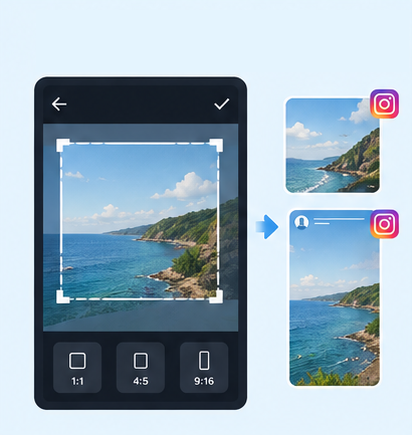
IG Post/Story Resize

Threads Post Image
Shopee Main/Product Image

2-Inch ID Photo

Passport Photo

Resume Photo
IG Grid Maker
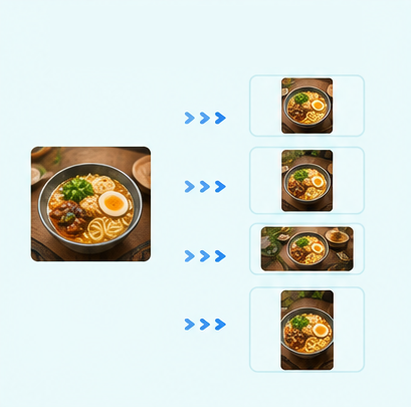
Multi-Platform Resizer
LINE Rich Menu
YouTube Thumbnail & Banner Resizer
Facebook Image Resizer
LinkedIn Profile/Banner Resizer
Amazon Product Image Resizer
Shopify Product Image Resizer
Etsy Image Resizer
eBay Product Image Resizer
Rakuten Product Image Resizer

Image Compressor
Image Format Converter

Image Watermark

Add Border to Image
Photo Collage Maker

Image Mosaic

Blur Faces

Blur License Plates
Mercari Image Size & Crop Tool | Free 1:1 Photo Resizer
Use the free Mercari photo crop tool in GenApe's AI tools, with no signup or login required. Just upload your image, choose a resolution, crop it, and download your listing photo. Whether you're selling collectible figures, used electronics, clothing, or anime merchandise, you can prepare your photos for Mercari listings with ease.

Recommended Mercari Listing Photo Sizes
Square images with a 1:1 aspect ratio are recommended in Mercari Japan's official photo-size guide and work well in listing thumbnails and search results. The guide suggests sizes such as 640×640 and 720×720 pixels. GenApe also offers a 1080×1080-pixel option for users who prefer a higher-resolution square image, alongside our Amazon image resizer.
Note: Resizing a blurry photo to 1080×1080 pixels will not automatically make it sharper. Consider the quality of your original photo when choosing an output resolution.
How to Crop Mercari Listing Photos
With the online Mercari image crop tool, it only takes a few steps to prepare your photos. You can adjust both portrait and landscape images.
Upload Your Used-Item Photo
Open the GenApe Mercari image tool, click the upload area, or drag and drop your photo into the tool.
Choose a Mercari Photo Size and Output Format
Once your photo is uploaded, select a 1:1 square image size such as 640×640, 720×720, or 1080×1080 pixels, and choose the output format that best suits your needs.
Check the Crop and Download
Review the framing and image size, then click “Apply & Download” to save your cropped product photo.
Where to Use the Mercari Photo Resizer
From collectible figures and used electronics to fashion, designer accessories, and fan merchandise, GenApe's Mercari photo tool helps you prepare square product images for a variety of secondhand listings.

Selling Used Toys and Collectibles
Whether you're showing the front and back of a trading card, a collectible figure, its packaging, or a complete set, cropping your photos into squares makes it easier to organize images for different collectibles.

Reselling Used Electronics and Appliances
Hair dryers, cameras, laptops, and other used electronics often need photos of the item itself, included accessories, close-up details, and different angles, much like Rakuten product photos. A 1:1 image lets you frame the important details consistently.

Listing Secondhand Clothing and Fashion
Flat lays, hanging garments, outfit shots, and close-ups of fabric details can all use a consistent square crop. It works for dresses, jeans, jackets, sneakers, and other pre-owned fashion items.

Reselling Pre-Owned Designer Items
From the overall appearance of a bag and close-ups of jewelry to brand labels, hardware, and other item details, square crops can help you prepare consistent photos of pre-owned designer goods for Mercari.

Anime Merchandise: Acrylic Stands, Badges, and Doujinshi
Photos of anime character stands, badges, keychains, doujinshi, and other fan collectibles can also be cropped to a 1:1 square format using the Mercari product photo tool.

K-Pop and J-Pop Merch: Photocards, Albums, and Light Sticks
For K-pop idol photocards, J-pop band CDs, concert light sticks, and other music merchandise, the crop tool can help organize images of both sides of a photocard, album covers, light sticks, and special-edition sets.
Product Photo Composition Tips for Secondhand Listings
Clear photos help potential buyers understand an item's appearance, condition, and included accessories. They can also reduce the need for follow-up questions when listing details are hard to see. Keep these points in mind when taking and cropping photos:
Show the Full Item in Your Cover Photo
Make the item itself the focus of your first listing photo so buyers can recognize it in search thumbnails. Leave some space between the item and the edges of the frame before cropping to 1:1, so important parts are not cut off.
Show Wear, Labels, and Accessories Clearly
Use photos from different angles to show scratches, wear, labels, and included accessories. Keep important details visible rather than cropping too tightly or editing out flaws, so buyers can see the item's actual condition before purchasing.
Use Even Lighting and a Simple Background
Take photos in even lighting to avoid dark areas, backlighting, or harsh reflections that hide details. A white, light gray, or uncluttered background can make items easier to see. Keep colors true to the actual product instead of applying heavy color adjustments.
Include a Realistic Usage Example
Showing an item in use can help buyers understand its size and purpose. If taking your own lifestyle photo is not practical, an AI product image tool can help illustrate a use case. If the image includes props or accessories that are not part of the sale, make that clear in your listing description.
Mercari Photo Size FAQ
Mercari Japan's official photo-size guide recommends square images with a 1:1 aspect ratio, including sizes such as 640×640 and 720×720 pixels. These dimensions help keep item photos consistently framed without distorting the image. Higher-resolution photos can also be used, and GenApe offers a 1080×1080-pixel output option.
Yes. Rectangular photos can be uploaded, but parts of the image may not be fully visible in previews. Check the thumbnail composition before uploading, and crop to a 1:1 square when needed to keep the item visible.
Mercari US currently allows up to 12 photos per listing. You can use them to show the front, back, signs of wear, labels, included accessories, and other details of the item. Mercari Japan has a different limit.
Unlike new products with standardized promotional images, used items vary in condition, included accessories, and signs of wear. Cropping and organizing your photos can help buyers see the item more clearly and understand exactly what is being sold.
Cropping changes which part of the photo is shown and does not inherently reduce the quality of the original image. However, reducing resolution, enlarging a low-resolution photo, or recompressing the file can affect sharpness. Start with a clear, high-resolution original whenever possible.
No. GenApe's online Mercari image crop tool is free to use without signing up, logging in, or installing software. Open the page, upload your photo, choose an image size, and download the cropped result.
It is generally best not to use photos or text created by others without permission. Even if sellers sometimes use official promotional images, those materials are not automatically free to reuse. Check usage rights first, or take your own photos to accurately show the item, its condition, any wear, and included accessories.

