GenApeLogo
Close sidebar
  • Home
  • editIconTextApegradientUpIcon
  • AI Content WorkspaceUpgrade
  • imageIconImageApegradientUpIcon
  • AI Video Generator
    Popular
  • additionIconAdditiongradientDownIcon
  • Pricing
Blog
  • Sign up and get 200 free Credits!
    Back to list

    Multi-Platform Resizer

    Crop once, get IG/Story/banner sizes automatically

    Import image & size settings

    Click or drag to add an image

    Other sizes will be cropped around this center point

    Preview Size

    PNG format cannot be compressed
    No image uploaded yet

    Other cropping tools

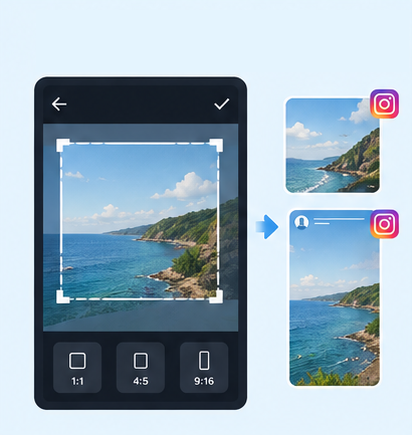
    IG Post/Story Resize

    4:53:41:11.91:19:16

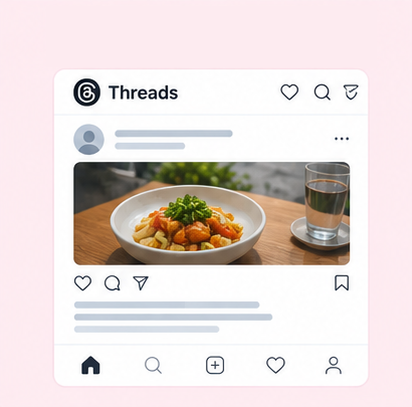
    Threads Post Image

    4:51:19:161.91:1

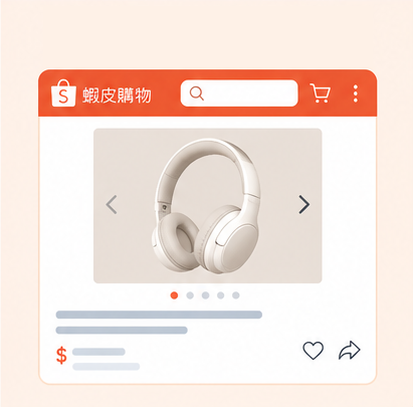
    Shopee Main/Product Image

    1:13:4

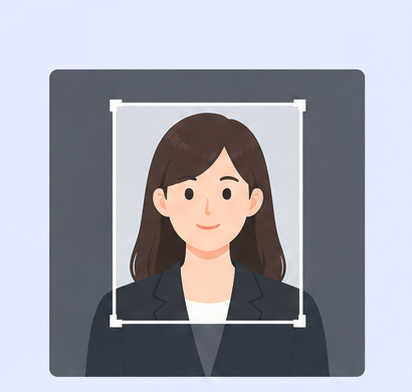
    2-Inch ID Photo

    3.5:4.5

    Passport Photo

    3.5:4.5

    Resume Photo

    3.5:4.54:5

    IG Grid Maker

    1:14:5

    LINE Rich Menu

    3:23:1

    YouTube Thumbnail & Banner Resizer

    16:99:161:1

    Facebook Image Resizer

    4:316:91:12.6:11.92:11.91:11:22:1

    LinkedIn Profile/Banner Resizer

    1:14:16:13:24:5

    Amazon Product Image Resizer

    1:1

    Shopify Product Image Resizer

    1:116:9

    Etsy Image Resizer

    1:11.7:17.6:17.5:14:12:14:3

    eBay Product Image Resizer

    1:14.41:116:9

    Rakuten Product Image Resizer

    1:15.14:15:23:1

    Mercari Product Image Resizer

    1:1

    Image Compressor

    Image Format Converter

    Image Watermark

    Add Border to Image

    Photo Collage Maker

    Image Mosaic

    Blur Faces

    Blur License Plates

    Social Media Image Sizes | Free Image Resizer for Multiple Platforms

    Tired of resizing images separately every time you post on different social media platforms? GenApe’s free tools let you resize images in batches online. Upload an image once to create multiple versions for different social media platforms.

    Why Use GenApe’s Online Image Resizer?

    Simplify the work of preparing images for different social media platforms with these practical features:

    No Need to Memorize Sizes

    Choose a ready-made template instead of repeatedly looking up dimensions or entering pixel values. Check the placement of people, products, and text after applying the template to prepare images for different social media placements more efficiently. For more post and Story sizes, use the Instagram image resizer to fine-tune your crop.

    One-Click Resizing

    After placing your image in a template, adjust the focal point to choose which details stay visible. Preview the positions of people and products without repeatedly dragging a crop box, making everyday image preparation easier.

    Multiple Sizes at Once

    Apply different size templates to the same image, adjust the composition, and download multiple images together. Spend less time setting up and exporting each version for event promotions, product marketing, and cross-platform publishing.

    Common Social Media Image Sizes and Aspect Ratios

    Image sizes and aspect ratios vary across social platforms. Instagram posts, Threads images, Stories, and Facebook banners all require different dimensions depending on placement. Use the table below to find common social media image sizes.

    Image TypeAspect RatioRecommended Size
    Instagram / Threads Square1:11080 × 1080 px
    Instagram / Threads Portrait4:51080 × 1350 px
    Stories / Reels9:161080 × 1920 px
    Facebook Link Preview Image1.91:11200 × 630 px

    Need additional Facebook-specific dimensions? Use the Facebook image resizer to crop images for different placements.

    How to Batch Resize Images Online in 3 Steps

    Whether you’re on your phone or computer, these three simple steps help you prepare images for multiple social media platforms in less time:

    Choose a Template

    Choose a template you want to apply to your image

    Upload Your Image

    Upload your image to the template and adjust its focal point

    Download Multiple Sizes

    After adjusting the image, download and save multiple sizes at once

    Frequently Asked Questions About Social Media Image Sizes

    Here are answers to common questions about image file sizes and aspect ratios when preparing content for multiple social platforms.

    They serve different purposes. Resizing or cropping an image changes its dimensions, aspect ratio, or composition. For example, you might crop a photo into a 1:1 square. Compressing an image reduces its file size, such as from MB to KB, without necessarily changing its visible dimensions or composition.

    No. GenApe is designed to preserve the original image's pixel density and color details during processing, so resizing does not compromise the original image quality.

    Open GenApe's social media image resizer on your phone and upload an image from your photo library. Select the social media sizes you need, and the tool will automatically crop the image into different aspect ratios. You can then download all the resized images together to your phone.

    GenApe currently supports common social media image aspect ratios, including 1:1 square posts, 4:5 portrait images, 9:16 Stories, and other landscape formats. If you need to fine-tune an image for a specific platform, you can also explore the Instagram and Facebook image cropping tools.

    Assistant
    LineButton