


Import Image & Border Settings
Click or drag to add an image
Other cropping tools
IG Post/Story Resize

Threads Post Image

Shopee Main/Product Image
2-Inch ID Photo
Passport Photo

Resume Photo
IG Grid Maker
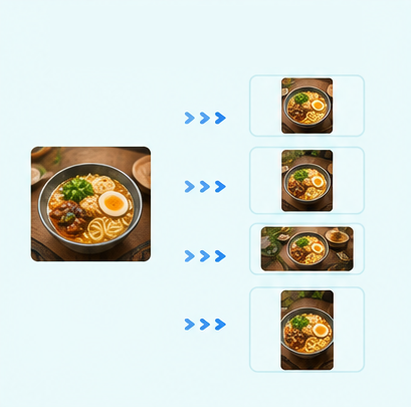
Multi-Platform Resizer
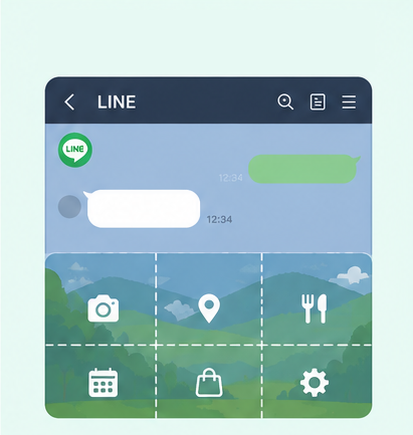
LINE Rich Menu
YouTube Thumbnail & Banner Resizer

Facebook Image Resizer
LinkedIn Profile/Banner Resizer
Amazon Product Image Resizer

Shopify Product Image Resizer
Etsy Image Resizer

eBay Product Image Resizer
Rakuten Product Image Resizer

Mercari Product Image Resizer
Image Compressor
Image Format Converter
Image Watermark
Photo Collage Maker
Image Mosaic
Blur Faces
Blur License Plates
Add Border to Image or Photo Online | White & Custom Borders
GenApe is a free online tool for adding borders to images, designed for social media layouts, photo editing, and e-commerce listings. Whether you want to add a white border to Instagram photos to help prevent awkward cropping or give product photos more room around the edges, our AI tools let you adjust the padding equally on all four sides and choose a custom border color. There is no app to download or install—just open the page and get started.
How to Add a White Border to an Image Online
You don’t need professional editing skills to add a border to a photo. Follow these four simple steps in our easy-to-use editor.
Upload the Image You Want to Edit
Choose the photo or image you want to add a border to and open it in the tool. A clear original image makes it easier to check details near the edges and decide how much padding to add.
Choose White, Black, or a Custom Border Color
Choose white for a clean photo border or black to create a stronger contrast with the background. You can also pick a custom color to match the tones in your photo or your brand palette.
Adjust the Padding on All Four Sides
Move the simple slider to increase or decrease the border width evenly on all four sides, until the amount of padding looks right for your image.
Preview and Download Your Image
Preview your photo with its new border in real time. Once you’re happy with the result, click Download to save the high-quality image to your device.
Customize Your Image Border
Our online photo border tool keeps things simple, with the essential controls you need to customize your borders without a complicated editing workflow.

Adjust Photo Border Width with a Slider
There’s no need to enter complex pixel values. Use the slider to adjust border thickness, and the tool automatically applies the same width to all four sides for a balanced frame.

Choose Any Photo Border Color
From classic black and bright accent colors to a warm, vintage-inspired cream, you can choose the border color that suits your photo. Match the colors in your image or use a consistent shade across a series of photos.

Add Borders to Images of Different Shapes
Whether your image is square, a vertical portrait, or a wide landscape photo, the tool detects the original aspect ratio and extends the border outward from the image edges.

Add a White Border to a Photo Online for Free
There’s no need to install a border app that takes up storage space or go through a registration or sign-in process. Just open your browser to add a border to your photo online for free.
Ways to Use White Photo Borders
From personal social media posts to business imagery, adding a border to a photo can help give your layout more breathing room.

Instagram & Social Posts | Add White Space Around Photos
Want a little more breathing room around your Instagram photos? Start with an even white border and adjust its width to suit the subject. Using similar border widths and colors across a series of posts also helps create a consistent look.

Product & Brand Images | Extend the Canvas with Borders
When a product sits too close to the edges of a photo, the layout can feel crowded. Adding a border extends the canvas and creates more space around the product, helping the image better fit the visual presentation guidelines of major e-commerce platforms. Pair it with our image watermark tool to prepare branded product images more easily.

Photography Portfolios | Create a Polaroid-Inspired White Border
Want digital photos to feel more like physical prints? Add a white or cream border of the right width to create a film-inspired or Polaroid-style look. For a series of images, use similar settings from photo to photo, then try our photo collage tool to arrange travel memories, portraits, or everyday photos.
Frequently Asked Questions About Adding Image Borders
Yes. GenApe’s image border tool is free to use online, with no account registration or sign-in required. You can add a white, black, or custom-colored border to your photo and adjust the padding on all four sides together. It’s a straightforward option when you only need a simple border around a whole image.
Not currently. For simple, intuitive editing, the tool adjusts all four sides equally. Moving the border-width slider adds the same amount of space above, below, to the left, and to the right of the photo. You can’t adjust an individual side independently.
Yes. The tool detects the original width-to-height ratio of your uploaded image and adds an even border outward from its edges, without stretching or distorting the subject.
Yes. Use the color picker to enter a color code or choose any color you like. White works well for a clean, airy layout; black can help the photo stand out from its background; and brand colors can tie product images together. Check the edge where the border meets the photo to make sure the colors work well together.
Adding a border increases the overall dimensions (resolution) of the exported image because it adds pixels around the original photo. The original image quality and colors are preserved 100%, without lossy compression.
Adding a white border places a solid frame around the rectangular edges of the entire photo, mainly for layout and extra canvas space. Outlining follows the irregular edges of a cutout subject, such as a person or product, and is often used for stickers or thumbnails. This GenApe tool adds borders and padding around the whole image, not subject outlines.

