




GenApeLogo
Close sidebar
  • Home
  • editIconTextApegradientUpIcon
  • AI Content WorkspaceUpgrade
  • imageIconImageApegradientUpIcon
  • AI Video Generator
    Popular
  • additionIconAdditiongradientDownIcon
  • Pricing
Blog
  • Sign up and get 200 free Credits!
    Back to list

    Blur Faces

    Select faces in a photo and blur them to protect privacy

    Import Image & Blur Settings

    Click or drag to add an image

    Blur strengthpx
    No image uploaded yet

    Other cropping tools

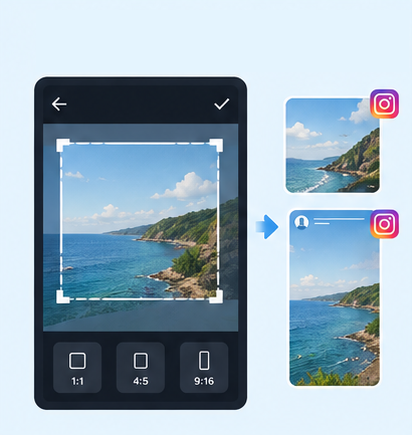
    IG Post/Story Resize

    4:53:41:11.91:19:16

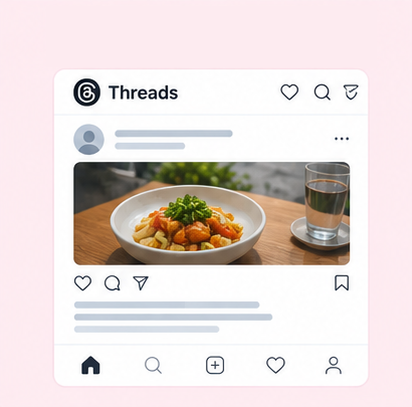
    Threads Post Image

    4:51:19:161.91:1

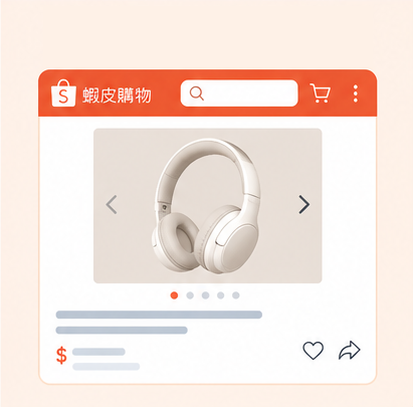
    Shopee Main/Product Image

    1:13:4

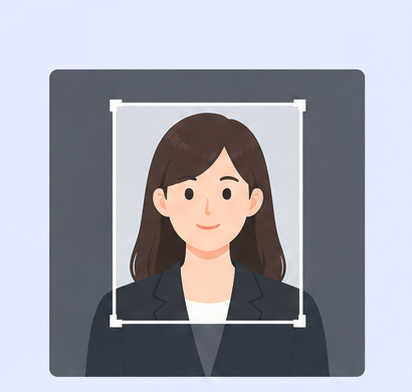
    2-Inch ID Photo

    3.5:4.5

    Passport Photo

    3.5:4.5

    Resume Photo

    3.5:4.54:5

    IG Grid Maker

    1:14:5

    Multi-Platform Resizer

    LINE Rich Menu

    3:23:1

    YouTube Thumbnail & Banner Resizer

    16:99:161:1

    Facebook Image Resizer

    4:316:91:12.6:11.92:11.91:11:22:1

    LinkedIn Profile/Banner Resizer

    1:14:16:13:24:5

    Amazon Product Image Resizer

    1:1

    Shopify Product Image Resizer

    1:116:9

    Etsy Image Resizer

    1:11.7:17.6:17.5:14:12:14:3

    eBay Product Image Resizer

    1:14.41:116:9

    Rakuten Product Image Resizer

    1:15.14:15:23:1

    Mercari Product Image Resizer

    1:1

    Image Compressor

    Image Format Converter

    Image Watermark

    Add Border to Image

    Photo Collage Maker

    Image Mosaic

    Blur License Plates

    Free Face Blur Tool – Blur Faces in Photos Online

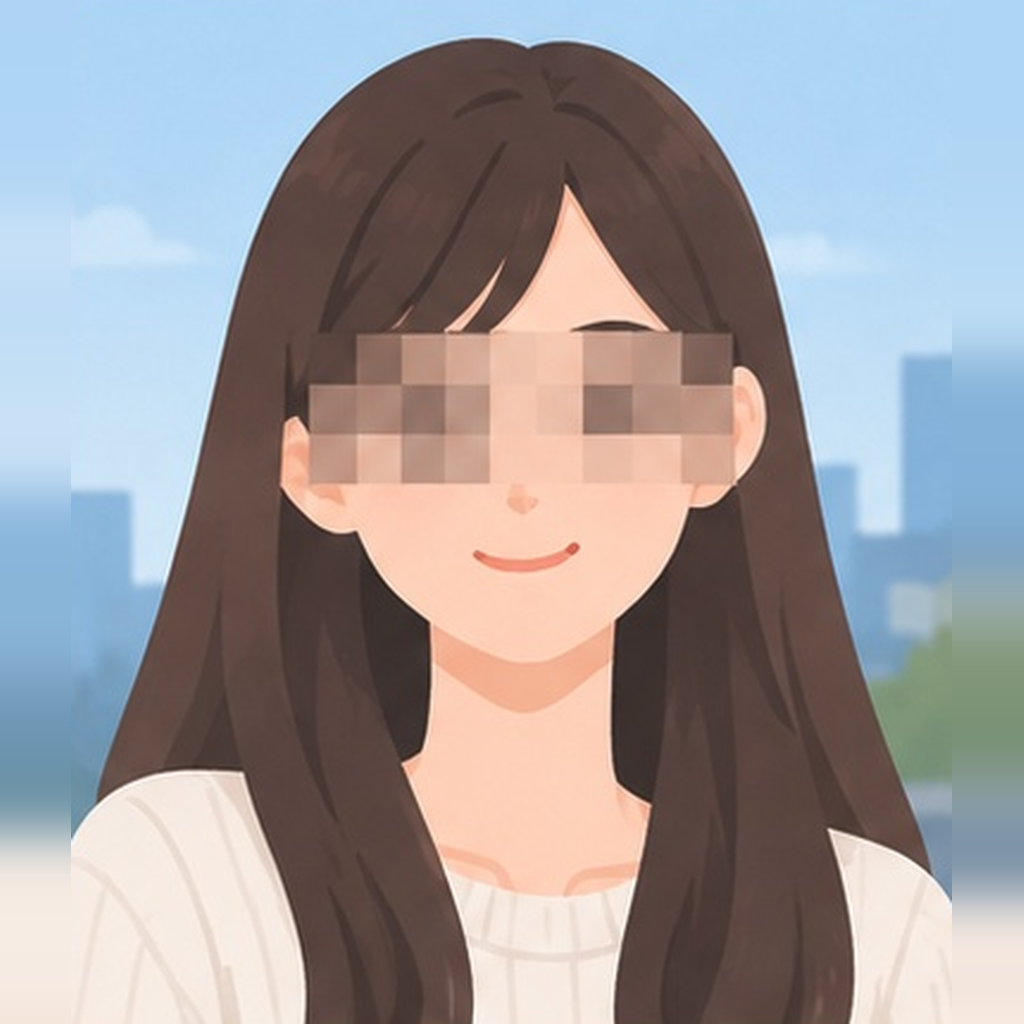
    A face selectively blurred in a photo while surrounding details remain clear

    Need to hide someone’s face in a photo? Use GenApe’s free face blur tool to draw an oval selection around the face and adjust the blur strength. You can blur specific faces in group photos right in your browser, including on an iPhone or tablet. No registration is required, making it easy to protect people’s privacy before sharing photos.

    4 Steps to Blur Faces in a Photo

    GenApe makes it easy to blur a face in a photo without advanced AI tools or photo editing skills. Just import a photo, select the faces you want to hide, and adjust the blur strength to edit only those areas.

    Upload a Photo to Blur Faces

    Open the GenApe face blur tool and choose the photo you want to edit from your device.

    Select the Faces You Want to Hide

    Find each face you want to conceal and draw an oval selection around it. You can select different faces or objects separately.

    Adjust the Face Blur Strength

    Once you have selected an area, adjust the blur intensity to suit how you plan to use the photo.

    Apply the Blur and Download

    Review the blur effect, apply your settings, and download the edited photo.

    Blur Faces While Keeping Photos Private

    GenApe’s free face blur tool lets you select specific areas, blur multiple faces in one photo, and adjust blur strength. Photos are processed only on your device, combining convenient editing with added privacy.

    Oval Selections Designed for Faces

    Unlike the rectangular selection used by the license plate blur tool, GenApe uses an oval selection that better follows the shape of a face. Whether someone appears in the center or at the edge of a photo, you can precisely blur that face without affecting the rest of the scene.

    Blur Multiple Faces in One Group Photo

    Select and blur several faces in the same photo while leaving other people clearly visible. This is useful for event photos, pictures with friends, and group shots shared on social media.

    Customize Face Blur Intensity

    Adjust the blur strength based on face size, image clarity, and how you intend to use the photo. If you prefer a blocky, pixelated look, try the image mosaic tool to make facial features and identifying details harder to recognize.

    Photos Processed 100% on Your Device

    Your photos are processed only on your device and are never uploaded to a server. Whether you are editing a private group photo, interview image, or work-related picture, you can blur faces directly in your browser and reduce privacy concerns associated with uploading photos.

    Free Online Face Blur, No Login Required

    The GenApe face blur tool is free to use. There is no need to register, sign in, or install software. Simply open it in a browser on your computer, iPhone, or tablet.

    When Should You Blur Faces in Photos?

    Here are some common situations where blurring faces in photos can help protect privacy in everyday life and at work.

    Friends together in a group photo for social media sharing

    Social Media Posts: Hide Faces People Don’t Want Shared

    When posting group pictures or party photos on Instagram, Facebook, or other social platforms, blur the faces of anyone who does not want to be identifiable. You can keep the memories while reducing the risk of sharing someone else’s clearly visible face without their consent.

    People speaking during an interview or consultation

    Interviews and Consultations: Protect Participants’ Identities

    For photos used in news coverage, research records, or publicly accessible clinic websites, blurring faces can help protect the privacy of interviewees, research participants, or people receiving consultations. The original setting remains visible for reporting and documentation.

    A traveler taking a selfie with other people in the background

    Travel and Street Photos: Blur Passersby in the Background

    Before sharing photos taken at attractions, on city streets, or in public spaces, you can blur the faces of people who happen to be in the shot. This preserves the scenery and travel atmosphere while helping reduce concerns about others’ image rights and keeping the focus on your main subject.

    Employees, customers, and guests gathered at a company event

    Company Events: Respect Employee and Customer Privacy

    At company dinners, exhibitions, seminars, or brand events, some employees, customers, or attendees may not want to be identified in public photos. Blur selected faces while keeping the event setting and promotional context visible.

    Frequently Asked Questions About Face Blurring

    Face blurring softens details within the selected area, making facial features harder to distinguish. The effect is subtle and blends naturally into the photo. An image mosaic effect, by contrast, turns parts of the image into visible pixel blocks. It is useful when you want a pixelated style or a more noticeable way to cover an area.

    Possibly. Blurring a face does not guarantee that the original details cannot be restored or that the person cannot be identified. The result depends on the blur strength, the clarity of the original photo, and other recognizable features. Clothing, backgrounds, and other details may also reveal someone’s identity. Use an appropriate blur strength and review the entire photo before sharing it.

    Yes. GenApe lets you manually choose which faces to blur, so you do not have to hide everyone in a group photo. Select each face separately while keeping other faces clear and preserving the original photo composition.

    No. GenApe offers a free online face blur tool with no registration, login, app download, or photo editing software installation required. Open the web page, select your photo, adjust the blur, and download the result.

    Yes. You can use the GenApe face blur tool in a browser on your iPhone or tablet. Select a photo, draw areas around the faces you want to blur, adjust the blur intensity, and download your edited image without needing a desktop or laptop computer.

    No. GenApe processes imported photos directly on your device. Your images are not uploaded to a server, which helps reduce privacy risks associated with transferring original photos online.

    Assistant
    LineButton