














Photo Collage Maker

Combine 2 to 4 images into one, in horizontal, vertical or 2x2 layouts

Import Images & Collage Settings

Number of images
Image 1

Click or drag to add an image

Image 2

Click or drag to add an image

Spacingpx
Background color
PNG format cannot be compressed
No image uploaded yet

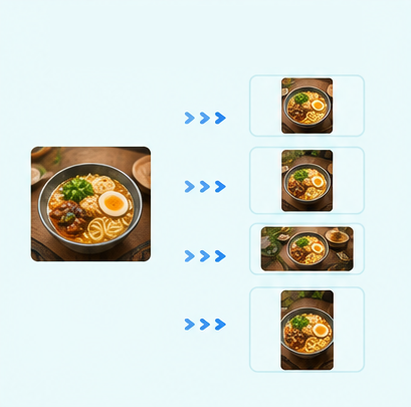
Other cropping tools

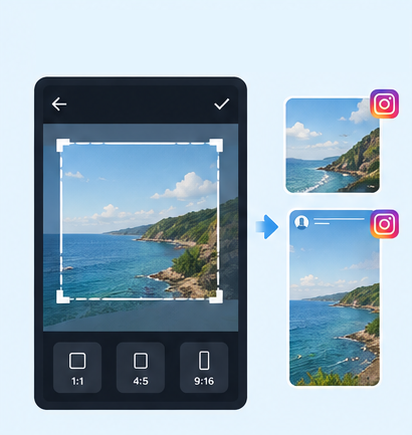
IG Post/Story Resize

4:53:41:11.91:19:16

Threads Post Image

4:51:19:161.91:1

Shopee Main/Product Image

1:13:4

2-Inch ID Photo

3.5:4.5

Passport Photo

3.5:4.5

Resume Photo

3.5:4.54:5

IG Grid Maker

1:14:5

Multi-Platform Resizer

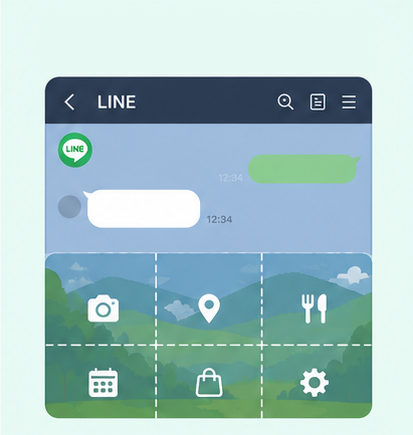
LINE Rich Menu

3:23:1

YouTube Thumbnail & Banner Resizer

16:99:161:1

Facebook Image Resizer

4:316:91:12.6:11.92:11.91:11:22:1

LinkedIn Profile/Banner Resizer

1:14:16:13:24:5

Amazon Product Image Resizer

1:1

Shopify Product Image Resizer

1:116:9

Etsy Image Resizer

1:11.7:17.6:17.5:14:12:14:3

eBay Product Image Resizer

1:14.41:116:9

Rakuten Product Image Resizer

1:15.14:15:23:1

Mercari Product Image Resizer

1:1

Image Compressor

Image Format Converter

Image Watermark

Add Border to Image

Image Mosaic

Blur Faces

Blur License Plates

Combine Images Online | Free Photo Collage & Image Combiner

Use GenApe's free image tools to combine 2–4 images in horizontal, vertical, or 2×2 layouts. Adjust the spacing and background color, choose your preferred image quality, and download the result as PNG, JPG, or WebP. No software download or sign-up required.

How to Combine Images Online?

With GenApe's AI tools, simply upload your photos, choose a layout, adjust the settings, and download the finished image. No software installation or account registration is needed.

Upload 2–4 Images

Select and upload 2–4 images to create a two-photo, three-photo, or four-photo layout. It's ideal for before-and-after comparisons, photo sequences, product images, or social media content.

Choose an Image Layout

Arrange your photos horizontally, vertically, or in a 2×2 grid. You can also adjust the spacing and background color to create a cleaner photo collage that fits your content.

Choose Quality and Format, Then Download

Once your images are combined, choose the output quality and download the result as PNG, JPG, or WebP. Select the settings that best fit social sharing, web use, or image storage.

Why Use GenApe's Free Image Combiner?

GenApe brings essential image combining features into one simple tool, from uploading and arranging photos to adjusting and downloading the final image. It's ideal for social media graphics, comparison images, photo sequences, and simple layouts.

Combine Images for Free Without Signing In

Open the tool and upload your images right away—no account or login required. Whether you need to quickly combine images or create a simple photo collage, everything can be done online without installing extra software.

Easily Combine Two or More Photos

Upload 2–4 photos at a time and quickly arrange them based on the number of images. Place two photos side by side, create a three-photo sequence, or organize four images in one layout. If you only want to give a single photo a printed-photo look, the image border tool is a better fit

Arrange Images Horizontally or Vertically

Choose a horizontal or vertical layout based on your photo dimensions and purpose, or arrange four images in a 2×2 grid. This makes it easy to organize different photos into a clean, balanced layout.

Customize Spacing and Background Color

Adjust the spacing between images and choose a background color to add white space, separate each photo, or match the overall color palette. You can also use the AI background changer for further background editing.

High-Quality Photo Collages Without Watermarks

Download your finished photo collage without an image watermark and choose the output quality that suits your needs. It's useful for social media, product displays, comparison images, or everyday photo organization.

Image Combining Examples

Different image counts and layouts work better for different types of content. Choose a layout based on the number, proportions, and purpose of your photos, then customize the spacing and background color.

Combine 2 photos side by side

Combine 2 Photos Side by Side

Place two photos side by side for before-and-after comparisons, product comparisons, couple photos, or different views of the same scene. A horizontal layout makes it easy to compare and share both images in one frame.

Combine 3 photos vertically

Combine 3 Photos Vertically

Arrange three photos vertically for selfie sequences, travel memories, or film-strip-style photo sets. Placing related images in sequence creates a natural visual flow and helps tell a story.

Combine 4 photos in a 2×2 grid

Combine 4 Photos in a 2×2 Grid

Arrange four photos in a 2×2 grid for memes, product showcases, event highlights, or polished promotional graphics. The four-panel layout presents more content while keeping the design clear and organized. You can also use AI image enhancement to improve image quality when needed.

Customize photo collage background color

Customize Your Photo Collage Background

In addition to arranging photos, you can adjust the spacing and background color. Use white space for a clean look, or choose a background that matches your photos for a more cohesive collage.

Image Combiner FAQ

Yes. GenApe's image combiner is free to use. Upload your photos, arrange them, adjust the spacing and background color, then download the finished image without paying to unlock the basic combining features.

No. You can open GenApe's image combiner and start using it immediately without creating an account or signing in, making it easy to quickly combine images or create a simple photo collage.

You can upload 2–4 photos at a time. Choose a horizontal, vertical, or 2×2 layout to create side-by-side comparisons, three-photo sequences, or four-image grids.

Yes. Open GenApe in your mobile browser and upload photos directly from your phone. No additional app is required, and you can download the combined image directly to your device when you're done.

GenApe lets you choose from different output quality settings based on how you plan to share or save the image. If you want to preserve more image detail, select a higher quality before downloading.

GenApe currently supports PNG, JPG, and WebP. You can choose the format that best fits your needs—for example, JPG for everyday photos and social media content, or WebP for web images.

No. GenApe processes your uploaded photos directly in your browser, so your images are never uploaded to or stored on GenApe's servers. Once the images are combined, you can download the result directly, helping keep your photos private.

The image combiner focuses on photo arrangement, spacing, background color, output quality, and file format. If you want to remove a background, create additional graphics, or resize the result for an Instagram post, download the combined image first and continue editing it with other GenApe image tools.

Assistant
LineButton