



GenApeLogo
Close sidebar
  • Home
  • editIconTextApegradientUpIcon
  • AI Content WorkspaceUpgrade
  • imageIconImageApegradientUpIcon
  • AI Video Generator
    Popular
  • additionIconAdditiongradientDownIcon
  • Pricing
Blog
  • Sign up and get 200 free Credits!
    Back to list

    LinkedIn Profile/Banner Resizer

    Quickly resize for LinkedIn profile, company page, and post images

    Import image & size settings

    Click or drag to add an image

    Image scale%
    PNG format cannot be compressed
    No image uploaded yet

    Click or drag to add an image

    Other cropping tools

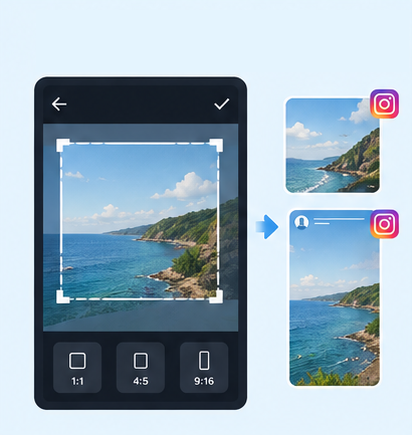
    IG Post/Story Resize

    9:164:53:41:11.91:1+3

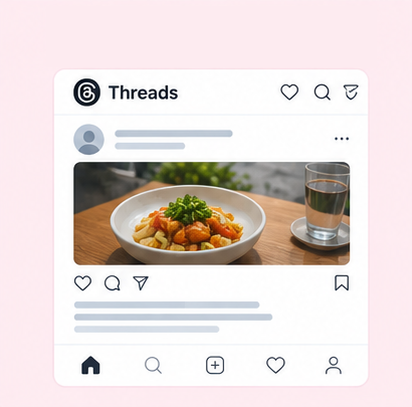
    Threads Post Image

    4:51:19:161.91:1+2

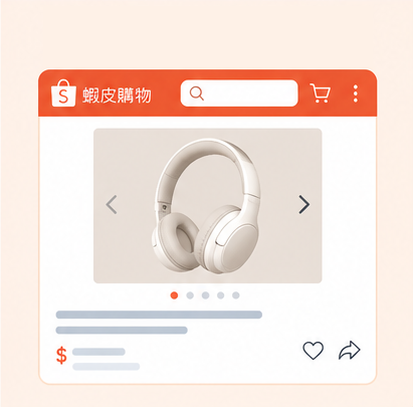
    Shopee Main/Product Image

    1:13:42.32:12:19:16+3

    2-Inch ID Photo

    3.5:4.5

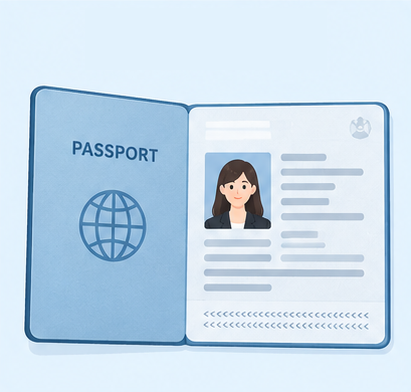
    Passport Photo

    3.5:4.5

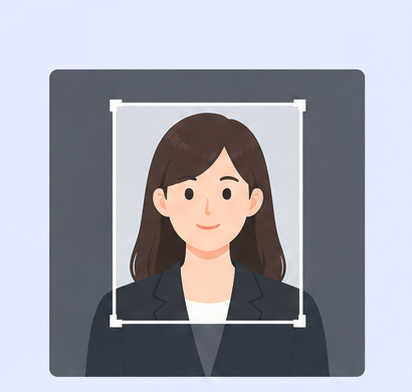
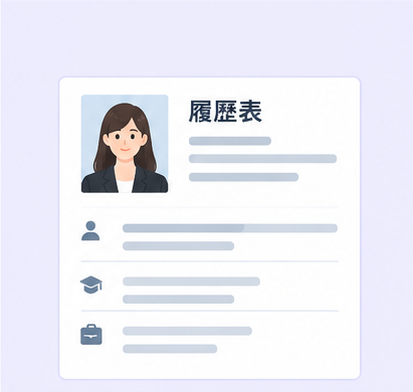
    Resume Photo

    3.5:4.54:5

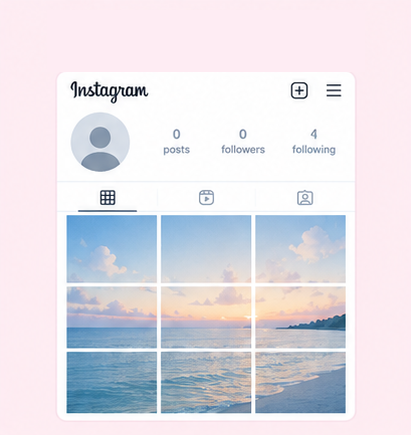
    IG Grid Maker

    1:14:5

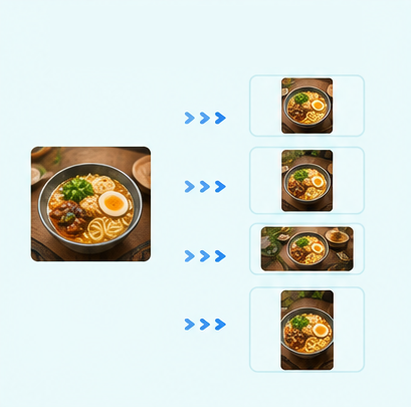
    Multi-Platform Resizer

    LINE Rich Menu

    3:23:1

    YouTube Thumbnail & Banner Resizer

    16:99:161:1+1

    Facebook Image Resizer

    4:316:91:12.6:11.92:11.91:11:22:1+6

    Amazon Product Image Resizer

    1:1

    Shopify Product Image Resizer

    1:116:9

    Etsy Image Resizer

    1:11.7:17.6:17.5:14:12:14:3+5

    eBay Product Image Resizer

    1:14.41:116:9+1

    Rakuten Product Image Resizer

    1:15.14:15:23:1+2

    Mercari Product Image Resizer

    1:1

    Image Compressor

    Image Format Converter

    Image Watermark

    Add Border to Image

    Photo Collage Maker

    Image Mosaic

    Blur Faces

    Blur License Plates

    LinkedIn Image Resizer | Crop Banners, Profile Photos & Posts for Free

    LinkedIn profile headshots resized for a polished professional image with GenApe

    GenApe’s free LinkedIn image resizer offers 8 preset image sizes for profile pictures, LinkedIn banners, company logos, and post images. Simply upload your photo, select a preset, and adjust the crop to create the right image for LinkedIn. No sign-in or installation required, so you can refresh your professional presence with ease.

    LinkedIn Image Sizes, Aspect Ratios & Uses

    Note for company page cover images: GenApe offers a 4200×700 px preset, while LinkedIn’s newer company page guidelines recommend 1512×256 px.

    Image typeDimensions (W×H)Aspect ratioCommon uses
    LinkedIn profile picture400×400 px1:1Personal profile photo
    Profile picture (large)1000×1000 px1:1High-resolution profile photo
    LinkedIn background banner1584×396 px4:1Personal profile background image
    Company logo400×400 px1:1Brand logo on a company page
    Company page cover image4200×700 px6:1Company page banner image
    Company photo900×600 px3:2Company environment, team introductions, and recruiting sections
    LinkedIn post (square)1080×1080 px1:1Company announcements and general image posts
    LinkedIn post (portrait)1080×1350 px4:5Professional insights and informational graphics

    How to Resize Images for LinkedIn

    You don’t need a separate AI tool to crop your photos. Just follow these 3 steps to size images for your LinkedIn profile picture, background banner, or posts.

    Upload Your Image

    In the LinkedIn image resizer, click the upload area to choose a photo from your computer, or drag and drop an image directly into the tool.

    Select a Preset LinkedIn Image Size

    Choose a preset LinkedIn photo size that matches where you want to use the image.

    Adjust and Download Your LinkedIn Photo

    Once you are happy with the composition, select PNG, JPG, or WebP as the output format and click “Apply and Download” to save your cropped LinkedIn image.

    Why Choose This LinkedIn Image Resizer?

    Your LinkedIn images play an important role in your professional presence and career connections. GenApe organizes commonly used image sizes into ready-to-use presets, combining free online cropping, real-time previews, and local processing so you can update your LinkedIn photos during a busy workday.

    8 Preset LinkedIn Image Sizes

    GenApe brings together 8 LinkedIn image crop presets, from profile pictures and background banners to company logos, company photos, and post graphics. Select the size and aspect ratio you need for LinkedIn. You can also use our resume photo cropper when preparing photos for job applications.

    Free to Use, No Registration Required

    Use this free LinkedIn image resizer without registering, signing in, or installing an app. Open the page whenever you need to crop photos for your LinkedIn profile or career updates. Pair it with our AI Background Changer to create a professional look and explore new opportunities.

    Multiple Image Editing Tools in One Place

    GenApe also offers tools to make your LinkedIn images look more professional. Whether you need an AI Clothes Changer, hairstyle previews, image editing, or file conversion, you can find a tool that fits your needs in one place.

    Preview Your Image in Real Time Before Uploading to LinkedIn

    Preview the image as you crop so you can check the subject’s position and framing before uploading it to LinkedIn. This helps reduce the need to crop it again and makes it easier to update your professional profile.

    On-Device Image Processing for Privacy

    GenApe’s LinkedIn image resizer processes images locally in your browser, with 100% of the cropping and adjustments completed on your device. This makes it convenient to work on personal photos adapted from ID photo sizes, internal company event photos, or brand assets that have not yet been made public.

    When Should You Use a LinkedIn Photo Resizer?

    LinkedIn is more than a job-search platform. It also helps professionals grow their networks, showcase their experience, and build a company’s brand presence. Here are 3 common ways to use LinkedIn images.

    Professional profile imagery for career transitions, multinational job applications, and personal branding.

    Professional Profiles: Career Changes, Multinational Job Applications & Personal Branding

    If you’re changing jobs, applying to multinational companies, or building your professional profile, consider visuals related to your field, such as technology projects, design work, or professional portraits.

    Company LinkedIn pages feature brand logos, cover images, and company photography.

    Company LinkedIn Pages: Logos, Cover Images & Brand Introductions

    For marketers, HR teams, and brand managers, a LinkedIn company page is a way to introduce the business, showcase its identity, and share company information. Consider adding team photos, office images, and a clear company logo.

    LinkedIn post visuals support company announcements, professional insights, and content marketing.

    LinkedIn Posts: Company Announcements, Industry Insights & Content Marketing

    LinkedIn posts are often used for company news, industry insights, work experiences, and branded content. Pairing text with appropriately sized square or portrait images can make information easier to read in the feed.

    3 Composition Tips for LinkedIn Photos

    LinkedIn may automatically crop images after you upload them, so keep these 3 composition tips in mind before you post:

    1.

    LinkedIn Profile Pictures: Allow for a Circular Display Area

    LinkedIn profile pictures use a 1:1 square image, but they appear as circles in parts of the profile and platform interface. When cropping your LinkedIn profile picture, keep the face near the center and leave enough room above the head, below the chin, and around the shoulders. Avoid placing important details in the four corners. If the person looks very small in the original photo, avoid enlarging the crop too much, as this may reduce image clarity.

    2.

    LinkedIn Banners: Keep Important Text Clear of Your Profile Photo

    A LinkedIn banner appears at the top of your profile, but your profile picture may cover part of it, so avoid placing all important information near the profile photo. When creating a 1584×396 px background banner, place your professional tagline, key services, or brand information away from the corners and the area covered by your profile picture, leaving enough space around the text. The visible area may also differ on desktop and mobile, so keep important text away from the image edges to reduce the risk of cropping.

    3.

    Company LinkedIn Post Images: Leave Room Around Text and Key Visuals

    When creating LinkedIn post images, businesses should leave enough space between text, logos, and people so that changes in the crop don’t disrupt the layout. For example, keep the headline and branding within the main viewing area of a square announcement graphic, and leave suitable margins in portrait infographics.

    LinkedIn Image Size FAQs

    No. LinkedIn recommends a 1584×396 px background banner for personal profiles, with an aspect ratio of about 4:1. GenApe currently offers a 4200×700 px preset for company page cover images, while LinkedIn’s newer company page guidelines recommend 1512×256 px.

    Both work. Choose based on your content and composition. A 1:1 square image works well for simple company announcements, brand visuals, or single information cards. A 4:5 portrait image is useful for photos of people, professional insights, or informational carousel graphics because it offers more vertical space.

    This may happen when the source image has insufficient resolution, its aspect ratio does not match the placement, or LinkedIn resizes or crops it to fit the interface. Cropping your image to a suitable preset first can help preserve clarity and reduce these problems.

    Not necessarily. LinkedIn adjusts the visible image area based on the device, browser window, and layout. Even a banner cropped to 1584×396 px may appear partially covered or cut off at the edges. Keep the main text and visual elements near the center, avoid the area covered by your profile picture, and check how the banner looks on both desktop and mobile after uploading.

    Yes, you can start with the same original photo, but crop it for each use. LinkedIn profile pictures generally use a 1:1 square ratio, while resume photos often use a portrait ratio, such as 3.5:4.5. Requirements can vary by employer, job platform, or interview materials.

    Choose a LinkedIn background image that fits your industry, personal brand, and the impression you want to convey. Blue and gray can work for finance, consulting, or corporate management, while designers, marketers, and creatives might use portfolio imagery, brand colors, or relevant work settings. Whatever you choose, avoid overly busy backgrounds, keep the profile photo and information easy to see, and use GenApe to crop the image to a suitable banner size.

    According to LinkedIn’s current image requirements, regular post images can use WebP, while personal profile photos, profile background images, and company page images use JPG or PNG.

    Assistant
    LineButton