










GenApeLogo
Close sidebar
  • Home
  • editIconTextApegradientUpIcon
  • AI Content WorkspaceUpgrade
  • imageIconImageApegradientUpIcon
  • AI Video Generator
    Popular
  • additionIconAdditiongradientDownIcon
  • Pricing
Blog
  • Sign up and get 200 free Credits!
    Back to list

    Blur License Plates

    Select license plates in a photo and blur them to keep plate numbers private

    Import Image & Blur Settings

    Click or drag to add an image

    Blur strengthpx
    No image uploaded yet

    Other cropping tools

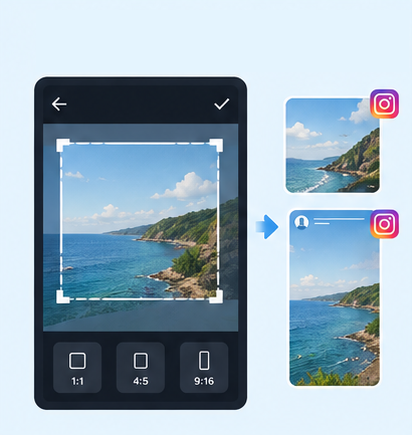
    IG Post/Story Resize

    4:53:41:11.91:19:16

    Threads Post Image

    4:51:19:161.91:1

    Shopee Main/Product Image

    1:13:4

    2-Inch ID Photo

    3.5:4.5

    Passport Photo

    3.5:4.5

    Resume Photo

    3.5:4.54:5

    IG Grid Maker

    1:14:5

    Multi-Platform Resizer

    LINE Rich Menu

    3:23:1

    YouTube Thumbnail & Banner Resizer

    16:99:161:1

    Facebook Image Resizer

    4:316:91:12.6:11.92:11.91:11:22:1

    LinkedIn Profile/Banner Resizer

    1:14:16:13:24:5

    Amazon Product Image Resizer

    1:1

    Shopify Product Image Resizer

    1:116:9

    Etsy Image Resizer

    1:11.7:17.6:17.5:14:12:14:3

    eBay Product Image Resizer

    1:14.41:116:9

    Rakuten Product Image Resizer

    1:15.14:15:23:1

    Mercari Product Image Resizer

    1:1

    Image Compressor

    Image Format Converter

    Image Watermark

    Add Border to Image

    Photo Collage Maker

    Image Mosaic

    Blur Faces

    Free License Plate Blur Tool – Blur License Plates Online

    Want to share a car photo without exposing its license plate number? With GenApe’s free license plate blur tool, upload a photo, select the plate area, and adjust the blur strength to conceal the number. You can also manually select other parts of a photo for localized photo blurring while leaving areas outside the selection unchanged. JPG and PNG images are supported, making it useful for used-car listings, car meets, and social media posts. Sign up and log in to download your edited images for free as many times as you like. For more image-editing options, explore GenApe’s free tools.

    How to Blur a License Plate in 4 Steps

    You don’t need professional photo-editing skills to use GenApe’s license plate blur tool. Simply upload your photo, select the license plate, adjust the blur strength, review the result, and download the edited image. To blur other details in a photo, manually select the desired area and apply the same localized blur effect.

    Upload a Car Photo

    Upload a JPG or PNG photo.

    Select the License Plate Area

    Use your mouse to draw a selection around the license plate you want to blur.

    Adjust the Blur Strength

    Set the blur strength to make the plate number harder to read.

    Review and Download Your Image

    Register and log in to your GenApe account for unlimited free downloads.

    Why Use GenApe’s License Plate Blur Tool?

    GenApe’s license plate blur tool lets you freely select an area, adjust blur strength, and undo edits. In addition to obscuring license plate numbers, it supports localized image blurring in other selected parts of a photo before you post it online.

    Select Any Blur Area for License Plates and Other Photo Details

    Draw a selection around the license plate to blur only that area, keeping the car’s appearance, paint color, and other unselected parts of the photo visible. You can also select other details in an image for localized photo blur processing when you want to make certain information less recognizable before sharing.

    Customize the Blur Strength

    Photos vary in resolution, shooting distance, and plate size. Adjust the blur strength to suit your image and make sure the license plate characters are not too easy to read.

    Supports JPG and PNG Images

    Upload common JPG and PNG image formats directly for license plate blurring. If your original photo uses a different format, you can convert it first using the image converter.

    Undo Changes and Reselect the Plate

    If you select the wrong area or are not happy with the blur, use “Undo Last Step” to make adjustments. You can also use “Clear All” to start over without uploading the photo again.

    Unlimited Free Downloads After Login

    Once you register and log in, you can download your edited images for free with no limit on the number of downloads. It’s helpful if you regularly prepare vehicle photos for sharing.

    When Should You Blur License Plates?

    Before publishing vehicle photos on websites, social media, or marketplaces, consider whether the license plate numbers need to be hidden. License plate blur is useful for used-car listings, car meets, and automotive photography—not just personal photos.

    License plate blurred on a car in a used-car listing

    Used-Car Listings: Hide License Plates Before Posting

    When selling a used car, you may need photos of the front, rear, and exterior details so buyers can assess its condition. If you don’t want the full plate number visible in a public listing, blur it before posting while keeping the car’s appearance clear.

    Cars at an outdoor car meet with blurred license plates

    Social Sharing: Blur Plates in Car Meet and Street Photos

    Photos taken at car meets, modified-car events, or on the street may include other people’s license plates. Blur any readable plate numbers before posting to reduce the chance of sharing or redistributing vehicle information unintentionally. If people’s faces are visible too, consider using the face blur tool to make them less recognizable.

    Dark-colored car with a blurred license plate and clear surroundings

    Automotive Photography: Keep the Car in Focus, Blur the Plate

    Automotive photography often relies on showing a vehicle’s body lines, finish, and surroundings. Cropping out the license plate can disrupt the composition. By blurring only the plate, you can keep the original framing while making the plate number less recognizable before showcasing your photos.

    Tips for Blurring License Plates Effectively

    Blurring a license plate does not automatically hide all identifying details. In high-resolution photos, characters may still be readable if the blur is too weak or the selected area is incomplete. When manually blurring part of an image, check all four edges of the selection for narrow strips that may have been left unblurred.

    Side-by-side comparison of weak and strong license plate blur on a white car

    Cover the Entire Plate and Use Enough Blur

    Make sure all letters and numbers fall within the selected blur area rather than obscuring only part of the plate. A light blur may still leave characters recognizable. Zoom in to inspect the result and increase the blur strength if needed.

    Multiple cars in a parking lot with foreground and background plates blurred

    Check for Other License Plates in the Photo

    Street, parking-lot, and car-meet photos can contain multiple vehicles. Check the background as well as the main subject. If several readable plates appear, review each one to avoid overlooking a vehicle.

    Laptop showing a car photo with a magnified preview of the blurred license plate

    Review the Result Before Downloading

    Before downloading, check the edges of the plate, the selected area, and the rest of the photo. You can also preview the image at its intended posting size to make sure no clearly readable characters remain. If the blur is incomplete, adjust it before sharing the photo online.

    If you prefer a pixelated effect or need to conceal other sensitive details, try the image mosaic tool to choose another way to hide parts of an image.

    License Plate Blur FAQs

    Blurring license plates helps reduce the exposure of plate information in publicly shared photos. Images posted on social media, used-car marketplaces, and other public websites can be downloaded, reposted, or combined with details such as where and when they were taken. If there is no need to display the full plate number, blurring it can reduce unnecessary exposure.

    It depends on the context and applicable law. A license plate number alone may not identify a specific person, but when it can be linked with vehicle registration records or other information to identify an individual, it may be treated as personal information under certain privacy laws. Privacy rules vary by jurisdiction, so consider whether the plate needs to be visible before publishing a vehicle photo.

    Posting a photo with a visible license plate does not necessarily result in a privacy breach, but it may make vehicle information easier to collect, repost, or combine with other details. For example, a photo that also shows a parking location, residential surroundings, or a place you visit regularly could reveal more about the vehicle and its whereabouts. If the plate number is not important to the photo, consider blurring it.

    Possibly, depending on the blurring method and strength. A lightly blurred plate may still have characters that can be read by eye or become easier to distinguish after image enhancement. GenApe applies blur to the selected area, so increase the blur strength as needed and check that the plate characters are no longer clearly readable before downloading. For highly sensitive information, consider fully covering it instead; no blur or mosaic effect should be assumed to guarantee irreversible concealment.

    Assistant
    LineButton